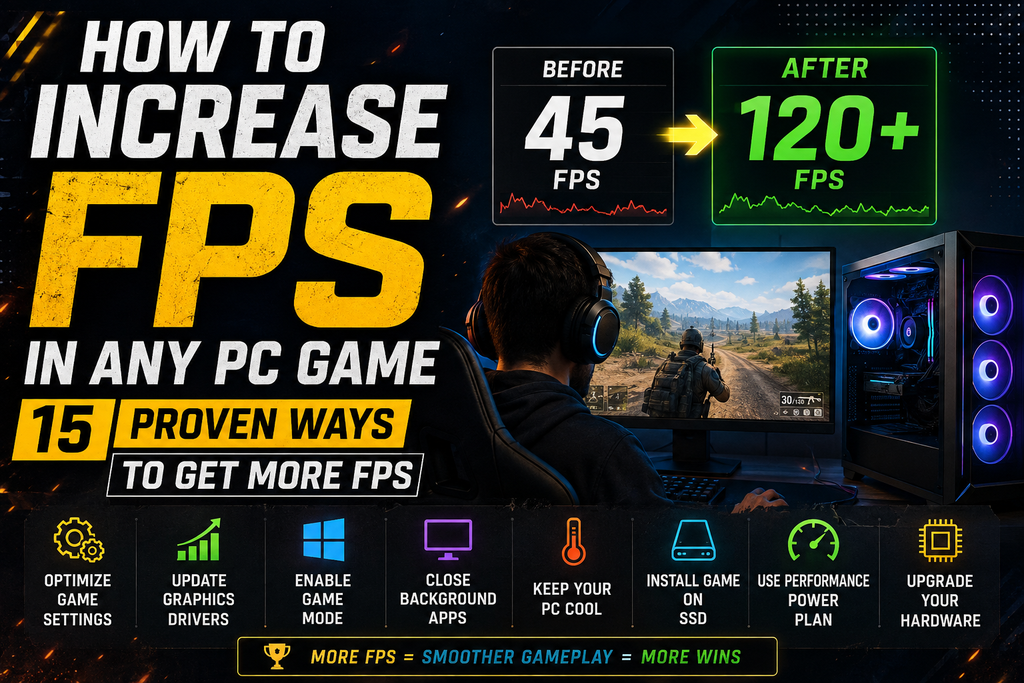
How to Increase FPS in Any PC Game: 15 Proven Ways to Get More FPS
Low FPS can make even a great PC game feel slow, choppy, and frustrating. The good news is that you don’t always need a new graphics card or an expensive gaming PC to improve your FPS.
By changing a few Windows, game, and graphics settings, you can often get smoother gameplay and more stable frame rates.
In this guide, you’ll learn 15 practical ways to increase FPS in almost any PC game—from simple settings changes to advanced optimisation tips.
What Is FPS?
FPS stands for Frames Per Second. It tells you how many frames your PC can display every second while you’re playing a game.
For example:
- 30 FPS: Playable, but can feel less smooth
- 60 FPS: Smooth for most games
- 90–120 FPS: Very smooth
- 144+ FPS: Excellent for competitive gaming
Higher FPS generally means smoother motion and better responsiveness, although your monitor’s refresh rate also matters.
1. Lower Your In-Game Graphics Settings
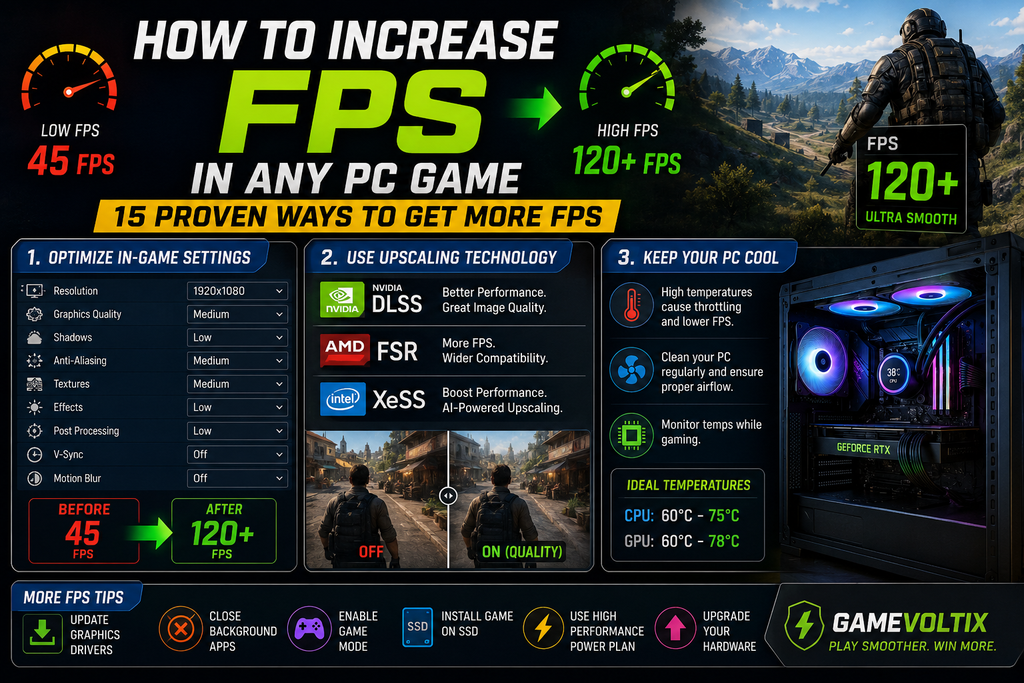
One of the fastest ways to increase FPS is to reduce demanding graphics settings.
Start with these settings:
- Shadows → Low
- Reflections → Low
- Volumetric Effects → Low
- Ambient Occlusion → Low
- View Distance → Medium
- Effects → Medium
- Anti-Aliasing → Medium
- Texture Quality → Medium/High
Don’t immediately set everything to low.
Textures often have a relatively small FPS impact when your GPU has enough VRAM, while shadows, reflections, lighting, and volumetric effects can be much more demanding.
Experiment with individual settings and check which ones have the biggest effect on your FPS.
2. Lower Your Resolution
Resolution has a major effect on GPU performance.
For example, moving from:
2560 × 1440 → 1920 × 1080
can significantly reduce the number of pixels your GPU needs to render.
If your FPS is extremely low, try lowering the resolution temporarily.
Best approach
Keep your monitor’s native resolution when possible. If you need more performance, consider using the game’s resolution scaling or upscaling technology instead of dropping the resolution too aggressively.
3. Use DLSS, FSR, or XeSS
Many modern games support technologies such as the following:
- NVIDIA DLSS
- AMD FSR
- Intel XeSS
These technologies render the game internally at a lower resolution and reconstruct the image to produce a higher-resolution result.
If your game supports one of them, try the following:
Quality → Balanced → Performance
in that order.
Start with quality because it usually provides a better balance between image quality and FPS.
4. Turn On Game Mode in Windows
Windows Game Mode can help Windows prioritise gaming workloads.
To check it:
Settings → Gaming → Game Mode
Turn Game Mode ON.
It isn’t a magic FPS boost, but it can help reduce unnecessary background activity while gaming.
5. Close Background Programs
Background applications consume CPU, RAM, GPU resources, and sometimes disc bandwidth.
Before launching a demanding game, close unnecessary programs such as the following:
- Chrome with many tabs
- Video editors
- Download managers
- Unused launchers
- Heavy background applications
You can also open Task Manager with:
Ctrl + Shift + Esc
and check which applications are using significant CPU, memory, or GPU resources.
Don’t randomly end Windows system processes if you don’t know what they do.
6. Update Your Graphics Driver
An outdated GPU driver can cause performance problems, crashes, or compatibility issues in newer games.
Download drivers directly from your GPU manufacturer’s official software or website.
For gaming PCs, the major GPU vendors are:
- NVIDIA
- AMD
- Intel
After installing a major driver update, restart your PC before testing your game again.
7. Set Your GPU to Prefer Performance
Your graphics driver may offer a performance-orientated power setting.
For NVIDIA GPUs, for example, you can find relevant options in the NVIDIA Control Panel.
A typical approach is the following:
NVIDIA Control Panel → Manage 3D Settings → Power management mode
For demanding games, you can test the following:
Prefer maximum performance
Keep in mind that this can increase power consumption and temperatures.
8. Check Your PC’s Temperatures
If your PC starts with good FPS but becomes slower after playing for several minutes, overheating could be the problem.
High temperatures can cause thermal throttling, where the CPU or GPU reduces its clock speed to control heat.
Monitor:
- CPU temperature
- GPU temperature
- CPU usage
- GPU usage
- Clock speeds
If temperatures are unusually high:
- Clean dust from the PC
- Improve airflow
- Check that fans are working
- Make sure vents aren’t blocked
- Consider replacing old thermal paste when appropriate
Don’t focus only on temperature numbers. Look for abnormal behaviour such as clocks dropping significantly when the system gets hot.
9. Use High-Performance Power Settings
Windows power settings can affect how aggressively your PC manages performance.
Open:
Settings → System → Power & battery
and check the available power mode options.
When gaming on a desktop or plugged-in laptop, a higher-performance mode can help prevent overly aggressive power saving.
Laptop users should remember that high-performance modes can reduce battery life and increase heat.
10. Install Games on an SSD
Moving a game from a slow hard drive to an SSD can improve the following:
- Loading times
- Texture streaming
- Open-world asset loading
- General responsiveness
However, an SSD doesn’t automatically double your FPS.
If you’re already GPU-limited, moving the game to an SSD may have little effect on average FPS.
11. Reduce Unnecessary Overlays
Game overlays can sometimes consume system resources or cause conflicts.
Consider disabling overlays you don’t use, including:
- Discord overlay
- Xbox Game Bar
- GPU recording overlays
- Launcher overlays
You don’t necessarily need to disable everything. Test performance with and without an overlay if you’re troubleshooting FPS problems.
12. Optimize Your Game’s Display Mode
If available, try:
Fullscreen
or the game’s recommended exclusive/fullscreen mode.
Some games perform similarly in borderless fullscreen, while others may benefit from exclusive fullscreen.
Also make sure your monitor is actually running at its intended refresh rate.
In Windows, check:
Settings → System → Display → Advanced display
Then select the appropriate refresh rate if your monitor supports multiple options.
13. Remove Unnecessary Startup Programs
Programs that automatically launch with Windows can consume RAM and CPU resources.
Open:
Task Manager → Startup apps
and disable programs you don’t need starting automatically.
Be careful with drivers, security software, and hardware utilities that your system actually requires.
14. Upgrade the Right PC Component
Sometimes software optimisation isn’t enough.
The important question is the following:
What is limiting your FPS?
If GPU usage is around 95–100%
Your GPU is probably the main limitation.
Consider:
- Lowering graphics settings
- Lowering resolution
- Enabling DLSS/FSR/XeSS
- Upgrading the GPU
If CPU usage is very high
You may be CPU-limited.
Try:
- Lowering CPU-heavy settings such as view distance
- Closing background applications
- Checking CPU temperatures
- Upgrading the CPU if necessary
If RAM is nearly full
You may need more RAM or fewer background applications.
For modern gaming, 16 GB is a reasonable baseline for many systems, while 32 GB can be useful for heavier multitasking and newer demanding games.
15. Find Out What’s Actually Causing Low FPS
Don’t blindly change 20 settings at once.
Instead, monitor your PC while playing.
Look at:
- FPS
- GPU usage
- CPU usage
- RAM usage
- VRAM usage
- Temperatures
- GPU/CPU clock speeds
This tells you where the bottleneck is.
For example:
GPU 99% + CPU 50%
usually indicates that the GPU is the limiting component.
But:
GPU 50% + one CPU core heavily loaded
can indicate a CPU/game-engine limitation.
Understanding the bottleneck is much more effective than randomly lowering every graphics setting.
Best Settings for More FPS
If you want a quick starting point, try this configuration:
| Setting | Recommended |
|---|---|
| Resolution | Native or 1080p |
| Shadows | Low |
| Reflections | Low |
| Effects | Medium |
| Textures | Medium/High |
| View Distance | Medium |
| Motion Blur | Off |
| V-Sync | Off for testing |
| Upscaling | Quality |
| Ray Tracing | Off |
| Ambient Occlusion | Low |
| Volumetric Effects | Low |
Your ideal settings will depend on your GPU, CPU, monitor, and the specific game.
What About Overclocking?
Overclocking can sometimes improve performance, but it isn’t the first thing you should do.
Before attempting it:
- Make sure your cooling is adequate
- Monitor temperatures
- Understand your hardware
- Test stability carefully
A stable PC running slightly slower is better than an unstable PC crashing during every game.
For most gamers, optimising settings and fixing thermal or software problems should come first.
Don’t Use “FPS Booster” Programs Blindly
Be careful with programmes that promise the following:
“100% FPS Boost!”
Many so-called FPS booster applications simply change Windows settings that you can change yourself—or run unnecessary processes in the background.
Before installing any optimisation software, check exactly what it changes and whether it comes from a trustworthy source.
Quick FPS Optimization Checklist
Before playing your favourite game, check these:
☑ Update your GPU driver
☑ Enable Windows Game Mode
☑ Close unnecessary background apps
☑ Check CPU/GPU temperatures
☑ Disable unnecessary overlays
☑ Lower shadows and reflections
☑ Disable ray tracing if necessary
☑ Enable DLSS/FSR/XeSS when available
☑ Check your monitor refresh rate
☑ Make sure your PC isn’t thermal throttling
☑ Monitor CPU/GPU usage to find the bottleneck
Frequently Asked Questions
How can I increase FPS without upgrading my PC?
Start by lowering demanding graphics settings, closing background applications, updating GPU drivers, checking temperatures, and using supported upscaling technologies such as DLSS, FSR, or XeSS.
Does lowering resolution increase FPS?
Yes. Lowering resolution reduces the number of pixels the GPU needs to render, which can increase FPS when the GPU is the bottleneck.
Does RAM increase FPS?
Adding RAM can improve performance if your system is running out of memory. However, adding RAM won’t necessarily provide a large FPS increase if your GPU or CPU is already the main bottleneck.
Does an SSD increase FPS?
Usually, an SSD improves loading and asset-streaming behaviour rather than dramatically increasing average FPS.
Why does my FPS drop after playing for a while?
Possible causes include thermal throttling, background processes, power limits, or memory-related issues. Monitor temperatures and clock speeds while the FPS drop occurs.
Should I turn V-Sync off?
If you’re troubleshooting FPS, testing with V-Sync disabled can help you see your system’s uncapped performance. However, V-Sync can reduce screen tearing, so the best setting depends on your monitor and preferences.
What is a good FPS for gaming?
60 FPS is a good target for many games. Competitive players with high-refresh-rate monitors may prefer 120 FPS, 144 FPS, 240 FPS, or higher when their hardware can sustain it.
Final Thoughts
You don’t always need an expensive upgrade to get better gaming performance.
Start with the basics: optimise graphics settings, reduce unnecessary background activity, keep your drivers updated, monitor temperatures, and identify whether your CPU or GPU is the bottleneck.
If your PC still struggles after optimisation, then a hardware upgrade may be the right solution.
Want to know exactly where your PC is losing performance?
Try a proper PC bottleneck calculator and compare your CPU and GPU before spending money on an upgrade.
About GameVoltix
GameVoltix helps gamers get better performance, discover useful gaming tools, and optimise their gaming setup without unnecessary complexity.
Explore more free gaming tools and calculators on GameVoltix.